
Welcome to Your
CURO Client Portal!
We’re so glad you’re here. This page is your go-to spot for everything you need to manage your accounts, whether it’s checking balances, linking outside accounts, or keeping your financial picture up to date. And don’t worry, you don’t have to figure it all out on your own. If anything feels confusing or you just want a little help, contact us and we’ll walk you through it step by step.


Each portal has its own job. Here’s when to use each:
Account View: your accounts today and going forward
Now that the move to LPL Financial is complete, this is where you’ll go for anything about your accounts.
Check balances and recent activity
View and download statements and documents
See how your portfolio is doing
Choose paperless delivery
Right Capital: your financial plan
Your personal financial planning dashboard brings all your accounts together, including investments, bank, mortgage, and more, so you can see the big picture in one place.
Link outside accounts
Track budgeting and goals
Work through your plan with us
Investor360: looking back only
Investor360 stopped updating live balances in mid-November of 2026, when your accounts moved to LPL. The balances you see there are from that date, not today. For current account values, use Account View.
Look up statements and activity from before the move
Download any past statements you want to keep
Investor360 closes on January 31st, 2027.
A heads up for tax season
You will receive 2026 tax forms from both NFS (where your accounts were held before the move to LPL) and LPL. NFS forms will arrive by mail and LPL will come depending on your selection of paperless documentation.

Your new home for balances, statements, tax documents and performance. Use Account View for your accounts now that we've moved to LPL Financial.
Also access on the Account View mobile app for iPhone and Android.
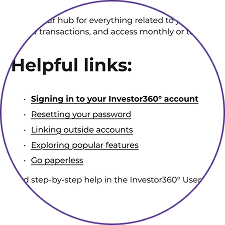
Helpful links:
Find step-by-step help in the Account View Guide

Your personal financial planning dashboard brings all your accounts together, including investments, bank, mortgage, and more, so you can see the big picture in one place.
Helpful links:
See the full RightCapital User Guide for details.

This is your hub for everything related to your investment accounts. Check balances, review transactions, and access monthly or tax statements.
Helpful links:
Find step-by-step help in the Investor360° User Guide
Prefer to watch and learn?
Explore the Investor360° video library:


Accessing Your Tax Documents
Every year, as they become available, your tax documents are sent to your permanent mailing address, typically by mid-March. However, we understand that there will be times you need to access your documents sooner.
If you would like to view your tax documents before they reach you by mail, or if you need to access previous years’ documents, you may do so through your Investor 360 Account at any time.
Follow the five easy steps below (Please note that third party accounts – i.e. 529’s, annuities etc. – will need to be viewed through their respective companies. These documents are also mailed to you once they become available):
Step 1
Visit our website at www.curowm.com. If you are on a desktop computer, click the “Account Access” button in the top right corner. If you are on a mobile device, tap the three lines in the top right corner and click “Account Access” at the bottom of the menu.
Step 2
Click the “Sign on to Investor360°” link on the left side of your desktop screen. If you are using a mobile device, this link is accessible at the top of your screen under the Investor 360 logo.
Step 3
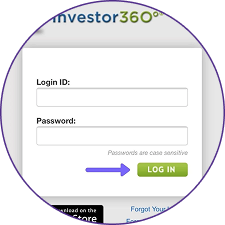
Use your previously provided username and password to log into Investor 360. If you have forgotten your credentials, please call our office and we will provide you with temporary login information.
Step 4
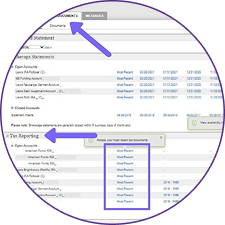
Click on the Statements and Documents Tab. Here, you are able to view your monthly account statements and tax reporting documents. Scroll down to the “Tax Reporting” section in the middle of the page and click on the “most recent” link next to each of your accounts.
Step 5
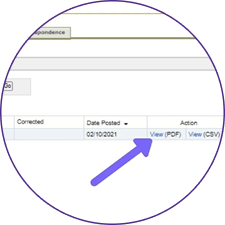
The “most recent” link will take you to a separate page where you can view and download a .pdf version of your statements for each account. You can then forward these documents to your tax professional for review.